
Sidebar Views
How to use sidebar views in Paradox Modding Toolkit.
Available in 0.5.0: the editor improvements described below are included in this published release.
The PX Toolkit activity-bar icon holds the Project controls and tool launchers. Explorer holds the views that describe your mod's files. Existing custom view placements are preserved; drag a view header to move it.
Before a mod is detected, PX Toolkit shows Start Here with create, find and tutorial actions. See Getting Started.
Project#
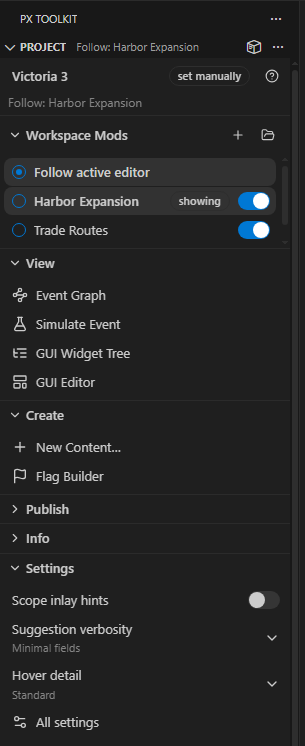
Project contains Workspace Mods, View, Create, Publish, Info and Settings in one scrolling panel. Groups remember whether you left them open. Utils, Test & Troubleshoot and Paths are separate views that you can move independently.
Workspace Mods#
Use the small + button beside the heading to create a mod. Use the folder button to add a mod or the base game to this workspace. It first offers Documents, configured projects, Steam Workshop and the base game, then lists mods for the active game. It does not open another window. The same action is Paradox: Add Mod or Base Game to Workspace.
With two or more indexed mods, the filled focus dot shows the selected mode: Follow active editor, or a pinned mod. In follow mode, the mod that owns the active file carries the showing tag. Pinning keeps views on that mod while you switch files. Focus changes what the views show; it does not turn indexing off.
Each mod also has an index switch, backed by px.excludedMods. Turn it off to exclude that mod from language features and diagnostics. The list scrolls after five visible rows. If the folder is missing a descriptor, the empty state offers a descriptor action.
Tools and settings#
- View: Event Graph, Simulate Event, GUI Widget Tree and GUI Editor where supported.
- Create: New Content and the creators available for the active game. See Content Creators.
- Publish: Steam Workshop tools. See Steam Workshop.
- Info: Getting Started, Discord, the Wiki hub, Credits and Examples Wiki. Getting Started uses its own flag icon.
- Settings: scope inlay hints, suggestion verbosity, hover detail and All settings. Changes apply immediately. An existing workspace override is kept; otherwise the choice is saved in user settings. Cancelling a picker keeps its previous value.
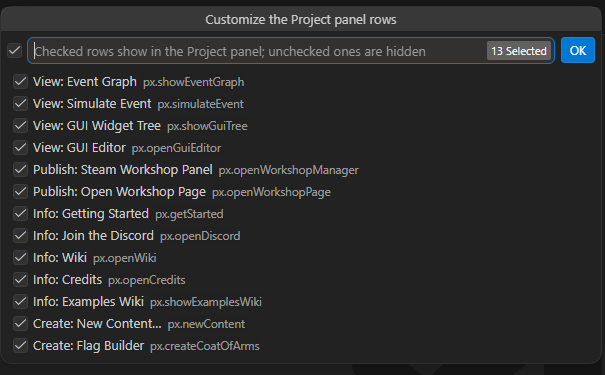
The package icon in Project's title bar opens All Tools. The ... menu holds Customize Project Panel Rows. Its checklist contains only the Project tool rows, not Utils, Test & Troubleshoot or Paths. Uncheck rows you do not use; All Tools and the Command Palette remain available.
Selecting the active game header or All settings opens native Settings filtered to the toolkit, with Workspace scope selected. On VS Code builds that use modal Settings, it can briefly appear as a pop-up before the toolkit moves it into a tab. The toolkit does not change your global modal preference.
Utils, Test & Troubleshoot and Paths#
Utils contains image conversion and BBCode conversion. Image commands accept multiple files, with folder conversion available from Explorer. See DDS and Images and Steam BBCode.
Test & Troubleshoot contains the validator baseline, unused-definition scan, generated validator configuration and binary update where supported. It also has controls for the validator's new-problems-only filter, watching the game log and vanilla diagnostics. Clear Game Problems appears when there are game-log problems to clear. The validator itself can be run from its status-bar item. EU5 has no tiger commands.
Paths shows the actual game, script-docs, mod, mod-projects, Workshop-listing and validator paths, including whether each was configured, detected, downloaded or is missing. Auto-detected values are useful here because native Settings shows the configured value, which can be empty. Select a path row to browse for a replacement.
Mod views in Explorer#
Mod Overview and Localization Coverage appear in Explorer and start collapsed. Problems by Type, Overrides & Conflicts and Dependencies start hidden; open them through VS Code's view controls when needed. Custom placements are not reset.
With multiple mods open, the views follow the active editor or the mod pinned in Project. All indexed workspace mods still participate in language features. See Multi Mod and Translation.
Mod Overview#
What it shows: your mod's content inventory, grouped by kind (events, decisions, traits, cultures, and so on) with counts.
Why you care: a quick census of what is actually in the mod, and a fast way to jump to any definition.
How to use it: click any item to open its definition. The title bar carries two buttons: Show Event Graph and Show Mod Report.
Problems by Type#
What it shows: every diagnostic, sliced severity → source·code → file. The toolkit's structural checks, tiger reports and the game's own error.log entries all feed it.
Why you care: it groups problems by what kind they are, so you can knock out a whole class at once instead of walking a flat list.
How to use it: expand a severity, then a source and code, then click a file to jump to the problem. The title bar carries Open the Problems Panel and Clear Game Problems. A code row offers Explain Code, which opens that code's page in the Wiki hub, and Suppress Code, which adds it to px.diagnostics.ignore after a confirm. A file row offers Reveal in Explorer and Next Problem in File.
Localization Coverage#
What it shows: per language, which keys are missing (referenced but never defined), orphaned (defined but unused), and untranslated (present but blank).
Why you care: missing loc is the most common reason a mod shows raw keys in game, and this makes the gaps visible per language.
How to use it: missing entries carry an inline Add Localization... action that writes the entry for you. Blank values count as untranslated, so the view doubles as a translation progress tracker.
The translation launchers sit in this view's title bar, next to the numbers they act on: Add Language (scaffold files) and Translate Missing Keys (one by one), with New Translation Mod in the ... menu. See Multi Mod and Translation.
Overrides & Conflicts#
What it shows: what your mod shadows in vanilla, with the resolved winner marked (script overrides are LIOS, last wins; GUI is FIOS, first-in-only-served, which is a common trap). It also flags definitions that two of your workspace mods both declare, noting that launcher load order decides those.
Why you care: overrides are invisible until they bite. This surfaces every one, including the GUI first-in-only case where a later definition is silently ignored, and mod-vs-mod collisions between the mods you have open.
Dependencies#
What it shows: for the definition at your cursor, what references it and what it references, grouped by kind.
How to use it: run Paradox: Show Dependencies of Definition at Cursor, then click any entry to jump to the site. The title bar has Show for Cursor, Clear the Dependencies View and an info note saying what the view answers; each row offers Show Dependencies of This, Find All References and Copy Name.
Event Graph#
What it shows: your events, on_actions and decisions wired to each other, laid out so left to right means "happens after", with an inspector that edits events as words rather than script. Open it with Paradox: Show Event Graph (Ctrl+Alt+G), the Mod Overview title bar, or the button on the editor title of an events / on_action / decisions file.
Why you care: event chains get tangled fast, and a picture of who triggers whom (plus a place to edit the events themselves) beats scrolling files.
It is a full workbench with its own page: Event Graph covers the time-axis layout, step rows, chain focus, the structured inspector and the pending-edit save model.
GUI Widget Tree#
What it shows: the PdxGui widget hierarchy of a .gui file as a collapsible tree, with type badges, names, using refs and animation states.
Why you care: GUI files nest deeply and reuse templates; a structural tree is far easier to navigate than raw text.
How to use it: open a .gui file and run Paradox: Show GUI Widget Tree (Ctrl+Alt+W, or the tree icon on the editor title). Click a node to jump to its source; the widget's line also flashes in the editor with a range highlight and an overview-ruler mark. Filter by name, and it refreshes on save.
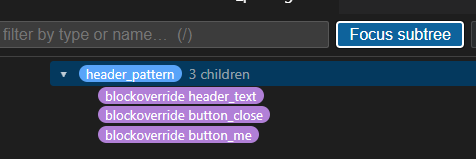
Focus subtree (Ctrl+Alt+H) pins one branch: clicking around inside it navigates without re-narrowing, h on a deeper node re-focuses there, and Esc zooms back out. The button says what it does in each mode.
To work on the file visually rather than structurally, see GUI Editor.
The Mod Report#
Paradox: Show Mod Report (Ctrl+Alt+R) renders the whole dashboard as one page in the toolkit's own panel style: content counts by kind, problems by source and severity, localization coverage per language, and the override map. Reach it from the Mod Overview title bar, the View section of the Project panel, or the palette.
It counts only the focused mod's diagnostics, and it reuses its panel instead of leaving dirty tabs behind.