
Getting Started
Install the extension, connect your game and make your first edit.
Available in 0.5.0: the editor improvements described below are included in this published release.
You can create your first mod without knowing where its folder belongs. If you already have a project, open it and keep your existing tools and layout.
New to VS Code? The VS Code Setup Guide uses annotated screenshots for installation, the editor layout, game setup, a first edit and Git checkpoints.
Install#
Install Paradox Modding Toolkit (JDeffner.px-toolkit) from VS Code's Extensions view (Ctrl+Shift+X). For a downloaded test build, use Extensions > ... > Install from VSIX..., then reload the window. Published builds are on the releases page.
The old CK3 Modding Toolkit listing is separate and does not update into this one. See Upgrading. For other editors, see Outside VS Code.
Open Start Here#
Select the PX Toolkit icon in the activity bar. Before the toolkit detects a mod, Start Here offers Create a Mod, Find Existing Mod and Follow the Tutorial. You do not need to open the game's installation first.
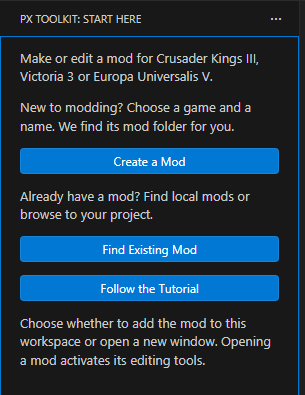
Your first mod#
- Select Follow the Tutorial, then I've never created a mod. This turns on scope inlay hints, which label the target of scope-changing script blocks. The ordinary Create a Mod action keeps your current hint preference.
- Choose Crusader Kings III, Victoria 3 or Europa Universalis V, then enter a mod name. When you are already in a mod workspace, creation uses its active game.
- Keep Game mod folder (recommended). The toolkit finds the folder, writes the mod descriptor and registers the mod with the launcher. It refuses to replace a mod or launcher link with the same name.
- Choose Add to Current Workspace or Open in New Window. Adding keeps this window, opens Explorer and shows the new mod's files. A new window keeps your original workspace open.
The creation wizard stays open when you switch to another window or click outside its inputs. You can still cancel with Escape.
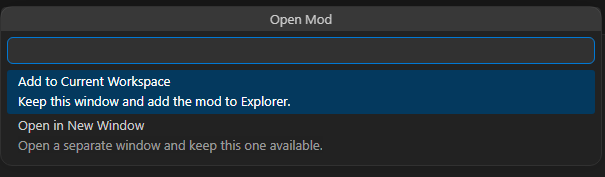
Created a mod but cannot see it? If you cancel the final opening step, the files remain on disk. A notification shows the saved folder and offers Add to Current Workspace and Open in New Window. If the toast has disappeared, open Notifications from the bell in VS Code's status bar to use its actions. If the notification is no longer available, select Find Existing Mod, search for the mod's name and open it from there. This also works on older builds without the recovery notification.
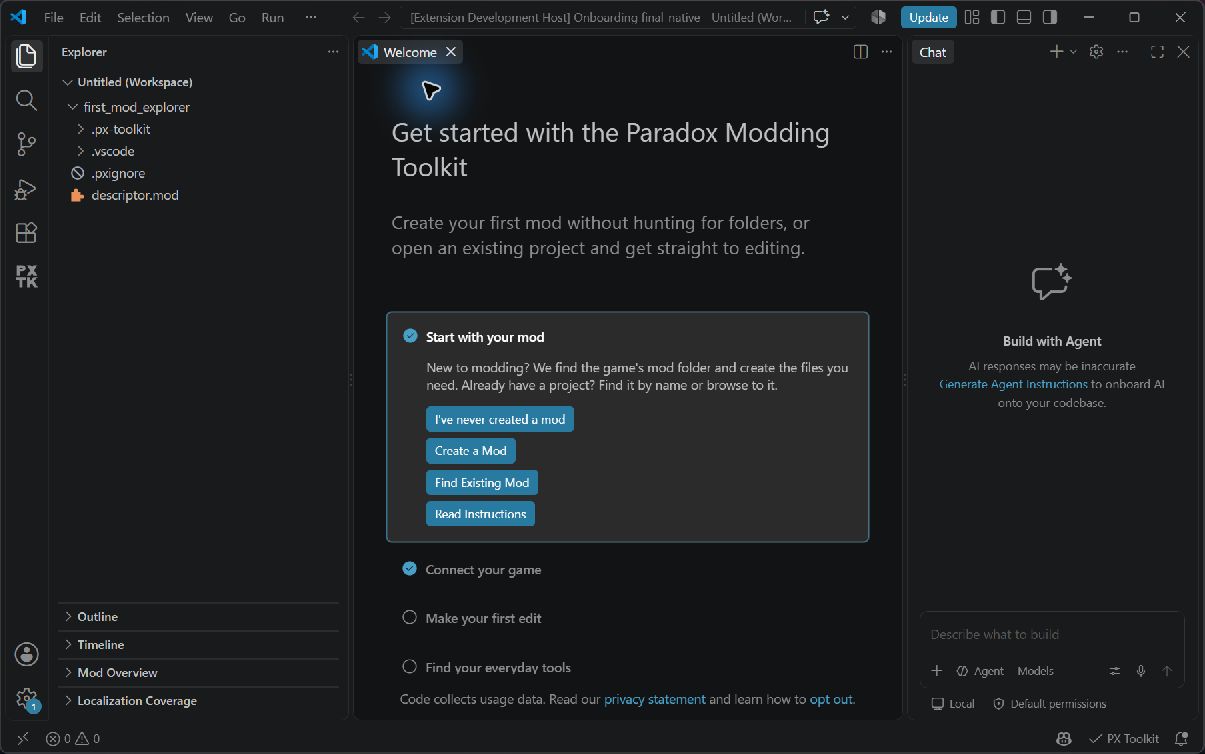
Creating a mod does not publish it or enable it in a launcher playset. Enable it in the game's launcher when you are ready to test it.
Victoria 3: the descriptor is .metadata/metadata.json. CK3 uses descriptor.mod; EU5 also uses metadata. Each newly created project remembers the selected game. A separate Victoria 3 or EU5 project uses a folder link in the game's mod folder, while CK3 uses a small .mod file pointing to the content.
An existing mod#
Select Find Existing Mod. It searches the games' Documents mod folders and your configured mod projects folder, including launcher links. Search by name or path, or select Browse for a mod or project folder... for a custom location or cloned repository.
Choose the mod itself, or a project with its content in a mod/ subfolder. Then choose Add to Current Workspace or Open in New Window. Cancelling the choice changes neither window. VS Code's File > Open Folder and Open Workspace from File also work.
Keep projects outside Documents#
Choose Mod projects folder during creation if you want git history, notes and Workshop listing files outside the content uploaded to the game. The toolkit asks for the folder once and stores it in px.modProjectsDir.
Mod projects/
  My Mod/
    mod/          Game content and descriptor
    workshop/     Listing files, created when you save a listing
The launcher link in the game's mod folder points to My Mod/mod. If linking fails, the toolkit reports it. See Steam Workshop for upload exclusions and listing files.
Paradox: Move Mod (between game folder and project folder) moves an existing mod between layouts. It copies and verifies the content before retiring the source, updates the launcher link and carries the Workshop listing with it.
Add more mods to this window#
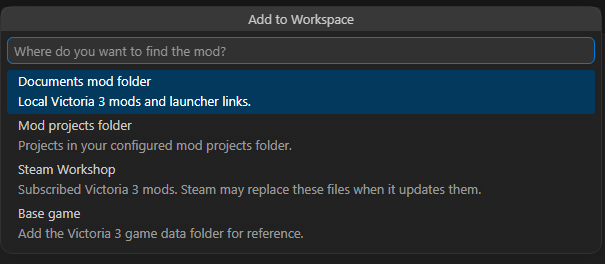
Once Project is visible, use the folder button beside Workspace Mods, or Paradox: Add Mod or Base Game to Workspace. Pick a source first:
- Documents mod folder: local mods and launcher links for the active game.
- Mod projects folder: projects under
px.modProjectsDir. - Steam Workshop: subscriptions found in Steam libraries for the active game.
- Base game: the game's data folder for reference.
The next picker lists the mods in that source. This action always adds to the current workspace. An already-open folder is not added twice. Steam can replace subscribed files during updates, so use your own source copy for edits you want to keep. Treat the base game as a reference, with changes in your mod.
A workspace uses one active game. Use separate windows for different games. See Multi Mod and Translation for parent mods and larger workspaces.
Connect the game, then make an edit#
Run Paradox: Run Setup & Health Check, or follow Connect your game in the tutorial. Setup checks the game, mod and data paths. If Steam detection misses a custom installation, use Choose Game Folder. A validator download is optional; it is not required to start editing.
Use Project > Create > New Content... to create a supported definition, then open its file in Explorer. Try completion with Ctrl+Space, hover a name, and use F12 to follow a reference. Watch Problems for structural issues. See Editor Features for the editing controls and Supported Games for differences between games.
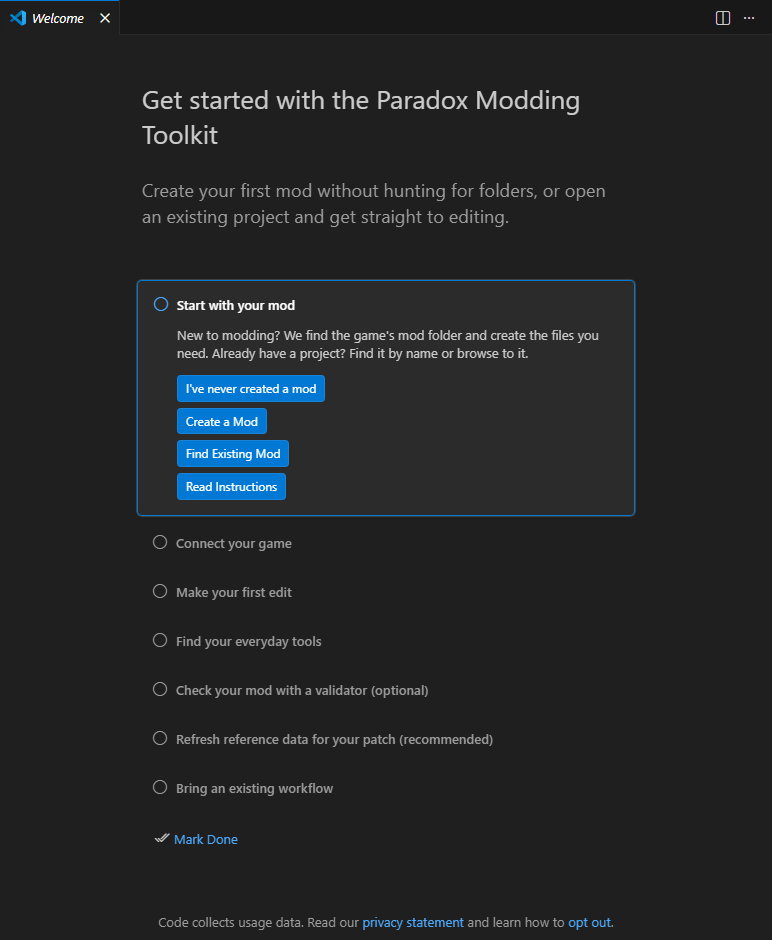
Return with Paradox: Get Started with the Toolkit. Each step has Read Instructions, which opens the complete instructions in a Markdown tab when the tutorial pane is narrow. Existing modders can jump to Bring an existing workflow.
Optional validation and current game data#
For deeper checks on CK3 or Victoria 3, install the matching tiger validator from Setup or the validator command. EU5 has no tiger integration. These checks supplement the toolkit's structural diagnostics.
Refresh your game data after patches:
- Launch the game with
-debug_mode, or use Paradox: Launch Game (debug mode). - Open the in-game console and run
script_docs. - Where supported, also run
DumpDataTypeson CK3 ordump_data_typeson Victoria 3 and EU5. - Return to VS Code and run Paradox: Reload Game Data (script_docs).
CK3 and Victoria 3 have bundled reference snapshots; your generated data matches your installed patch. EU5 needs your generated data for the engine vocabulary. See Supported Games for dump locations and Running the Game for launch options.
Find the tools#
PX Toolkit holds Project, Utils, Test & Troubleshoot and Paths. Mod Overview and Localization Coverage are in Explorer by default. Project's package icon opens All Tools; its ... menu holds Project row customization. Project > Settings controls scope hints, suggestion verbosity and hover detail. See Sidebar Views and Configuration.