
DDS & images
Inspect textures, convert images and match the format your game expects.
Paradox interfaces use DDS textures. That causes two everyday problems for modders: normal image editors and VS Code cannot preview a .dds, so you are editing blind, and if you get a texture's size or format wrong the game usually just shows nothing, with zero error output. This page covers the tooling that fixes both.
The toolkit ships a pure-TypeScript DDS decoder (DXT1/3/5, BC7, and uncompressed A8R8G8B8), so none of this needs external codecs.
Preview a texture inline (hover)#
Hover any .dds path in your script and the texture renders right there in the hover card, with its dimensions and encoding named. Path resolution is mod-first: if your mod overrides a vanilla texture, you see your version, matching what the game will actually load. This is the fastest way to confirm an icon = ... or texture = "gfx/..." points where you think it does.
Open a texture in a full preview#
Click any .dds file in the Explorer to open a zoomable preview panel. No more "unsupported text encoding" dead end when you open a texture.
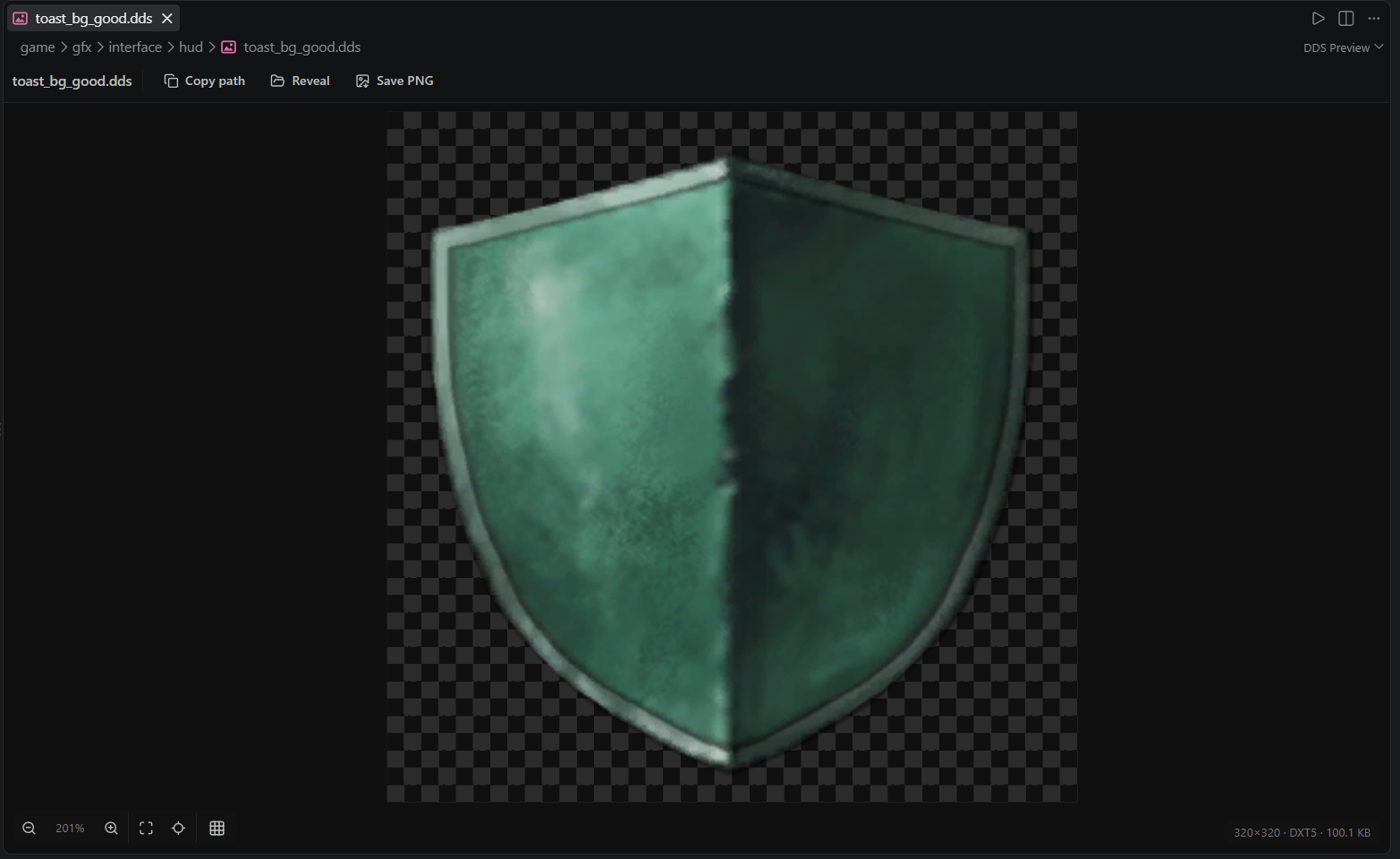
- Mouse-wheel zooms at the cursor (5% to 3200%), drag pans, and there are fit and recenter buttons.
- A pixelated toggle switches to nearest-neighbour scaling for inspecting single pixels; off matches how the game samples the texture.
- The alpha checkerboard makes transparency visible, and the corner readout names the dimensions, format and file size.
- Copy path copies the path from the
gfx/root, exactly as script references it. Reveal shows the file in the system file explorer. Save PNG decodes the texture and saves it as a.pngfor editing. Clicking the file name copies it.
Convert several images or a folder#
Available in 0.5.0: the editor improvements described below are included in this published release.
Use Utils > Convert Images..., or the image-conversion commands under Paradox in the Command Palette. The file picker opens directly; select one or more images. Convert Images to DDS... and Convert DDS to Images... provide the narrower conversion paths.
In Explorer, select files and right-click for the PX: conversion actions. You can also right-click a folder. Folder conversion asks whether to include subfolders; the ordinary file picker does not have a files-versus-folders step.
- Select the inputs, if you did not start from Explorer.
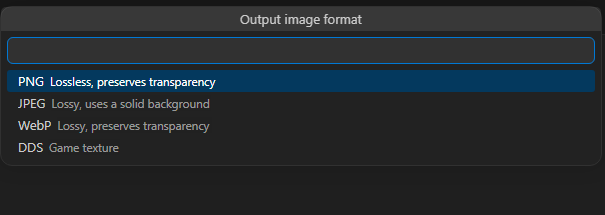
- Choose the output format. DDS asks for its encoding; JPEG asks for a white or black background because it cannot preserve transparency.
- Choose an output folder, or Beside source files.
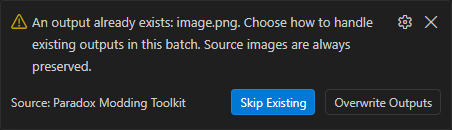
If an output already exists, a notification offers Skip Existing or Overwrite Outputs. That choice applies to existing outputs in the batch. There is no overwrite question for a conflict-free batch. Dismissing the notification stops the remaining conversion; files already converted remain on disk.
Source images are preserved, including when an output name would collide with another selected source. The result reports written, skipped and failed files. Cancel stops the remaining work; it does not roll back completed outputs. Folder hierarchies are preserved when exporting to another folder.
DDS encoding#
- Auto: BC3 / DXT5 for images with transparency, BC1 / DXT1 otherwise.
- BC1 / DXT1: compressed, without alpha.
- BC3 / DXT5: compressed, with smooth alpha.
- Uncompressed (A8R8G8B8): exact pixels, useful for small interface icons.
In the published 0.5.0 build, the converter does not generate mipmaps. Use another texture tool when the target asset needs a mipmap chain. The preview adds the controls described below.
Mipmaps and reference textures (0.5.2 preview)#
The 0.5.2 preview adds a full mip chain or a custom mip-level count to image conversion and creator picture imports. The count includes the base image: a count of 2 writes the base plus one smaller level.
Choose a reference DDS to copy its format and mip count. The reference stays read-only, and dimension checks reject incompatible inputs. Texture array replacements must match the original dimensions, compression and mip levels.
The DDS viewer can select stored mip levels and export the displayed level with Save preview PNG. This exports the displayed surface and level, not every surface in the file. Conversion rejects cubemaps, texture arrays and volume textures instead of silently exporting one surface.
Creator picture imports use the same DDS format, reference and mipmap choices, with lossless full-chain defaults. Replacement needs confirmation, and a destination that changed after the preview is rejected. The preview also preserves PNG RGB channels under zero alpha for portrait masks. Auto chooses uncompressed output when dimensions are incompatible with BC1 or BC3.
See the preview release notes for the exact changes.
Know the sizes and formats vanilla uses#
Run Paradox: Show Image Guidelines (sizes & formats) for a reference of the dimensions and formats the game actually uses, measured from the vanilla CK3 1.19 files (most common size and format per folder), with the rows the measurement did not cover filled in from the community "Graphical DDS FAQ" (thanks to Sparc). Match them and your art drops into the UI without scaling artifacts.
A few concrete examples from that reference:
- Trait icons (
gfx/interface/icons/traits): 120×120, uncompressed. - Faith icons (
icons/faith): 100×100, uncompressed. - Building icons (
icons/building_types): 150×130, uncompressed. - Culture tradition cards (
icons/culture_tradition): 545×285, uncompressed. - Event theme icons (
icons/event_types): 148×148, uncompressed. - Event scene backgrounds (
illustrations/event_scenes): 1592×848, DXT1. - Decision illustrations (
illustrations/decisions): 1100×440 (2200×880 for hi-res), DXT1. - Loading screens (
illustrations/loading_screens): 3840×2160, DXT1. - Coat-of-arms colored emblems (
coat_of_arms/colored_emblems): 256×256, DXT5, authored as recolor masks.
The rule of thumb straight from the vanilla data: small icons are uncompressed, big illustrations are BC1, anything with alpha gradients is BC3.
The measured numbers are CK3's. The decoder, the viewer, the hover previews and the converter work the same in a Victoria 3 or EU5 workspace; only the size table is CK3-specific.
Why the exact path matters#
The game finds textures by exact path. Your mod mirrors, say, gfx/interface/icons/traits/my_trait.dds, and the trait's icon key (or the default <trait_name>.dds lookup) must match it precisely. A typo means an empty icon and no error in any log. Non-power-of-two sizes are fine for interface textures (vanilla is full of them). GUI files reference textures with forward slashes, for example texture = "gfx/interface/icons/my_icon.dds".